
LinkedIn Headshot Tips: How to Get a Photo That Gets You Noticed
Updated October 29, 2026 · 13 min read
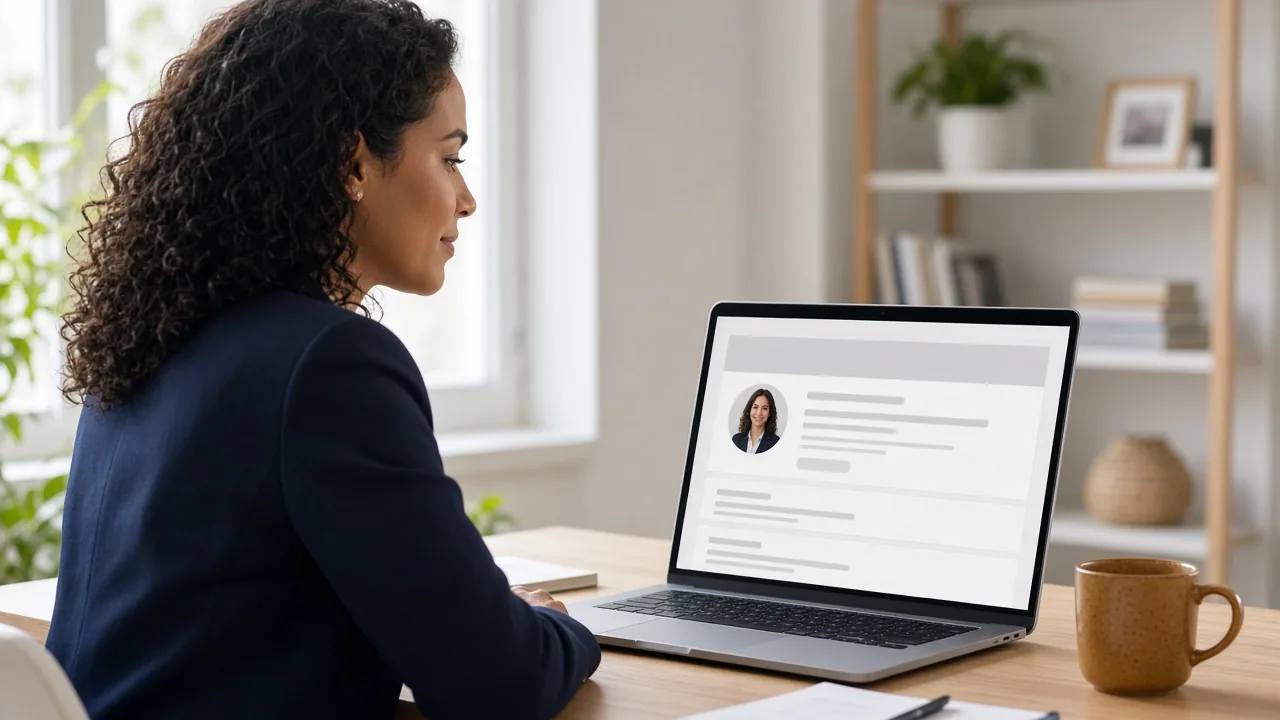
Your LinkedIn photo does a lot of quiet work. It shows up next to every comment you leave, every message you send, every application you submit and every time someone searches your name. Most of the time it is shown as a small circle, so a photo that looks great full-size on your phone can turn into a blurry, dark smudge on someone else's screen.
The good news: a strong LinkedIn headshot is not about expensive gear or a perfect face. It comes down to a handful of choices you control — how you crop, where the light comes from, what is behind you, what you wear and how you look at the camera. This guide walks through each one, shows a simple phone setup you can do at home, compares a photographer with AI headshots honestly, and ends with the exact steps to update your photo on LinkedIn.
Quick checklist
If you only have two minutes, check these:
- Your face fills most of the circle — head and top of the shoulders, not your whole body.
- Soft light falls on the front of your face (a window works); no harsh shadows under your eyes.
- The background is plain or softly blurred, not a busy room.
- You are wearing what you would wear to an important meeting in your field.
- You look straight at the camera with a relaxed, natural expression.
- The photo is recent and looks like you on a normal good day.
- The file is a JPG or PNG, at least 400 × 400 pixels and under 8 MB (LinkedIn's own limits).
Framing and crop: design for the small circle
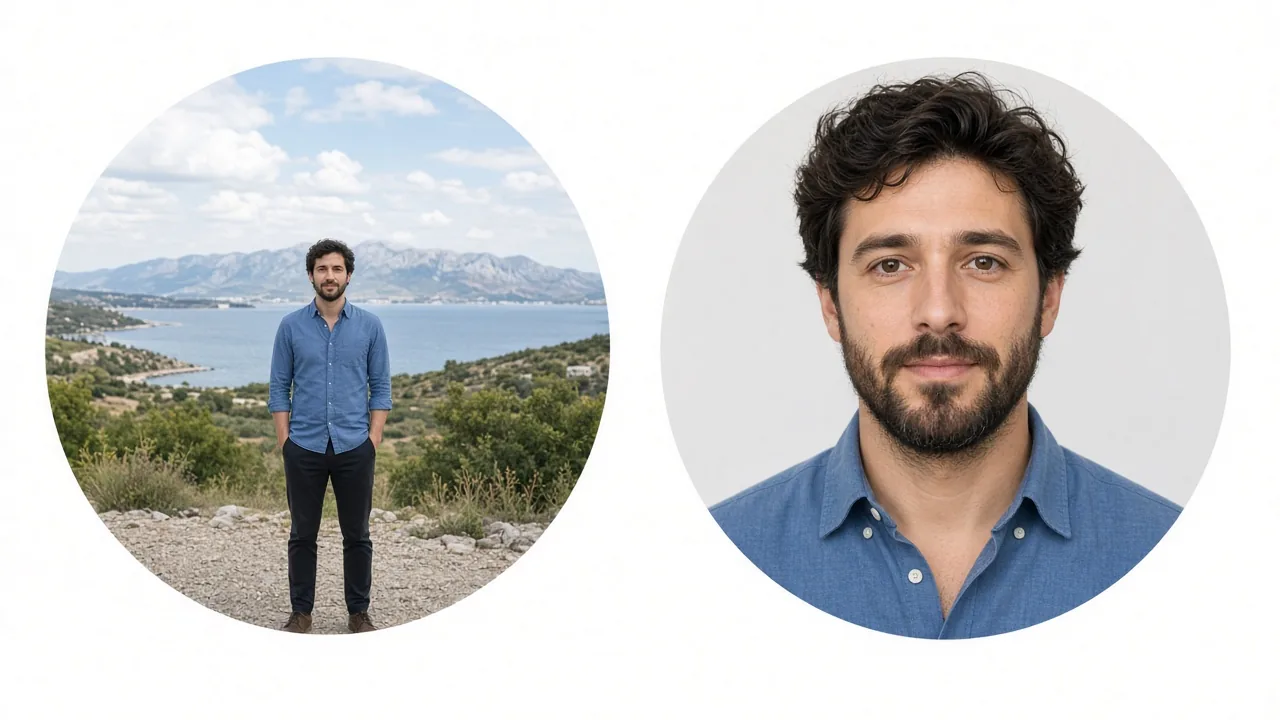
LinkedIn displays your profile photo in a circle, and in feeds, comments and search results that circle is small. That single fact should drive how you frame the shot.
Fill the frame with your face. A good rule of thumb is that your face should take up roughly half to two-thirds of the circle. Crop from just above the top of your head to around the middle of your chest. Full-body shots, group photos cropped down to you, and "me on a mountain" pictures make your face tiny and hard to recognize.
Put your eyes in the upper third. Eyes are what people look at first. If they sit roughly a third of the way down from the top of the frame, the photo feels balanced and leaves a little breathing room above your head without wasting space.
Center yourself for the circle. Off-center, rule-of-thirds compositions can look great in a rectangular photo, but a circular crop often cuts off an ear or a shoulder. Keep your head near the middle so nothing important gets clipped.
Shoot at eye level. A camera held below your chin is unflattering and makes you look like you are peering down at the viewer. A camera far above you looks like a selfie from a phone held at arm's length. Eye level reads as direct and confident.
Mind the size. According to LinkedIn Help, your profile photo should be between 400 × 400 and 7,680 × 4,320 pixels, under 8 MB, in JPG or PNG format (GIFs are not supported). Starting from a larger, sharp image and cropping down gives you room to adjust without losing quality.
Lighting: the biggest difference you can make for free
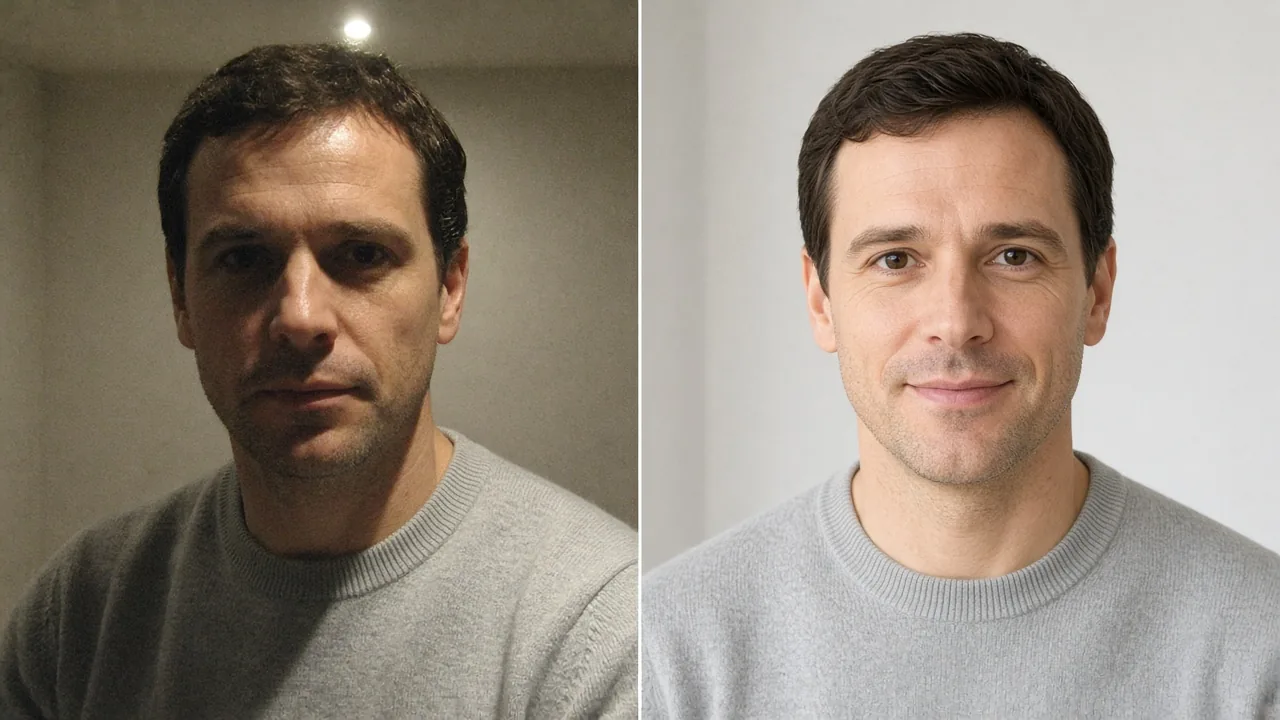
If you change only one thing, change the light. Lighting decides whether your skin looks natural, whether your eyes are visible, and whether the photo looks sharp or grainy.
Face a window. Soft daylight from a large window in front of you (or slightly to one side) is flattering for almost everyone. Stand or sit facing it, about an arm's length to a couple of meters away. Overcast days are actually ideal because the clouds diffuse the light.
Avoid overhead lights. A single ceiling light directly above you creates dark eye sockets and shadows under your nose and chin. If you can, switch it off and rely on the window instead.
Do not put the light behind you. A bright window or lamp behind your head turns you into a silhouette and confuses your phone's exposure.
Watch for mixed colors. Warm indoor bulbs combined with cool daylight can give your skin an orange or green cast on one side. Turning off indoor lights usually fixes it.
Background: simple beats impressive
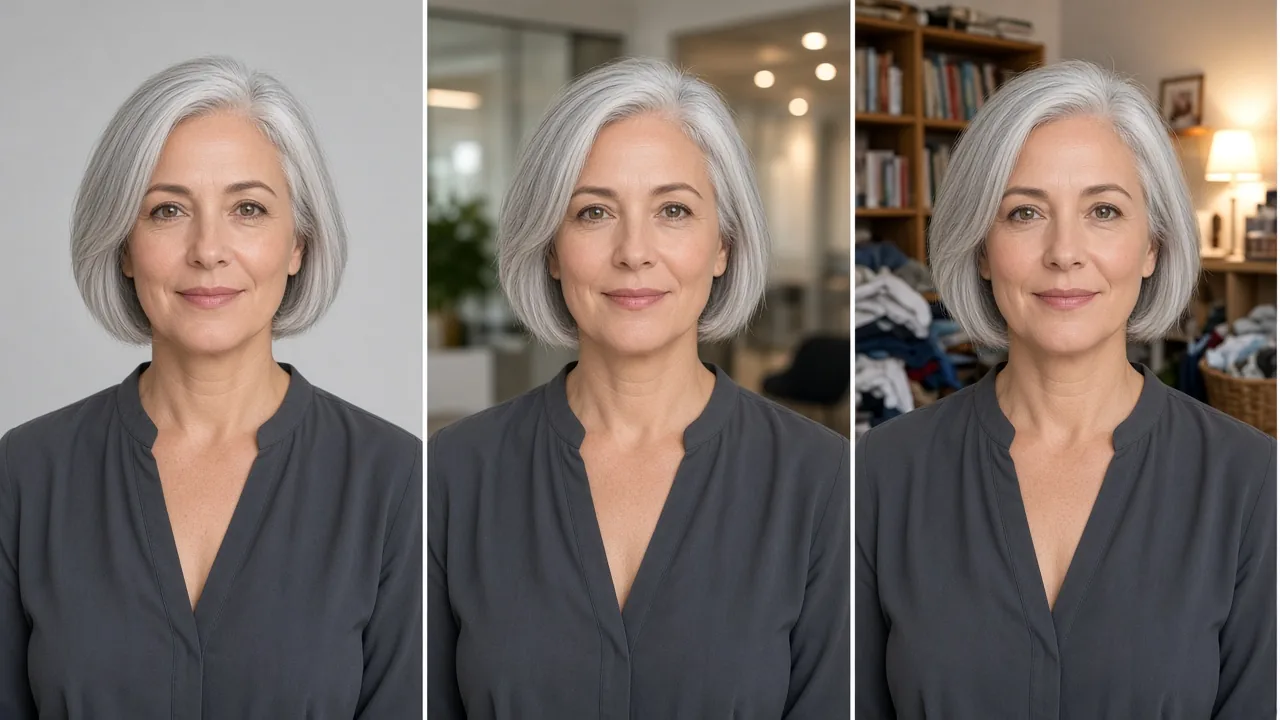
The background should support you, not compete with you. In a small circle there is very little room, and every distracting object steals attention from your face.
- Plain wall or backdrop: A light grey, off-white or soft neutral wall is the safest choice. It looks clean in the circle and works in any industry.
- Softly blurred office or outdoor scene: A gently out-of-focus background can add warmth and context, as long as nothing in it is sharp or bright enough to draw the eye. Portrait mode on many phones can help, but check the edges around your hair for odd cut-outs.
- What to avoid: Messy rooms, bathroom mirrors, car interiors, busy patterns, bright lamps behind your head, other people, and anything with readable text or logos.
Keep the background a little lighter or darker than your hair and clothing so you do not blend into it. Dark hair against a dark wall, for example, can make the outline of your head disappear at small sizes.
LinkedIn also gives you a separate background (banner) image behind your profile photo; LinkedIn Help recommends 1,584 × 396 pixels for that. Use the banner for context — your city, your work, your brand colors — and keep the profile photo itself simple.
Expression: approachable and confident
People respond to faces, so your expression matters as much as the technical details.
Smile with your eyes. A relaxed, genuine smile — closed-mouth or a little teeth — tends to read as approachable and competent at the same time. A forced grin or a completely blank face can come across as stiff.
Try the slight squint. Photographers often suggest narrowing your eyes very slightly, as if you are pleased to see someone. It sounds odd, but it reads as warmth and confidence rather than surprise.
Look into the lens, not the screen. On a phone's front camera, people tend to look at their own face on the screen, which makes their eyes look slightly down in the photo. Look at the lens itself.
Relax your shoulders and posture. Turn your body a little to one side, then turn your face back toward the camera. Push your forehead very slightly forward and down — it defines your jawline and avoids a double chin.
Take a lot of shots. Professional photographers take dozens of frames for one keeper. Do the same: shoot in bursts, change your expression slightly between takes, and pick the best one later.
What to wear: clothing by industry
The best rule is simple: wear what you would wear to an important meeting in your field, on a day you feel good. Your photo should look like the person a recruiter or client will actually meet.
| Industry or role | What usually works | Keep in mind |
|---|---|---|
| Law, finance, banking, corporate leadership | Dark suit or tailored blazer, collared shirt or simple blouse; a tie if that is normal in your office | Classic and polished beats trendy |
| Real estate, sales, consulting, client-facing roles | Blazer or smart jacket over a simple top, warm colors are fine | Approachable but put-together |
| Healthcare | Scrubs or a white coat if that is how patients see you; otherwise smart business casual | Match what your patients or employer expect |
| Tech, startups, product, engineering | Plain sweater, knit, or a well-fitting shirt; blazer optional | Clean and simple, no big logos |
| Creative fields (design, marketing, media) | Business casual with a bit of personality — a color or texture you like | Still keep it uncluttered |
| Academia, education, nonprofit | Smart casual: a blazer or cardigan over a simple top | Credible and friendly |
A few general tips that work almost everywhere:
- Solid colors beat busy patterns. Small checks, thin stripes and loud prints can look strange when scaled down.
- Mid-tone and darker colors are forgiving. Navy, charcoal, deep green, burgundy and soft blues flatter most skin tones. Very bright white can lose detail in strong light.
- Choose a neckline that frames your face. Collars, V-necks and crew necks all work; just avoid anything that distracts.
- Check fit at the shoulders. In a head-and-shoulders crop, shoulders and neckline are almost all anyone sees of your outfit.
- Skip visible logos and slogans. They date the photo and pull focus.

For a deeper dive, see our guide on what to wear for a professional headshot.
What recruiters and hiring managers notice
Nobody can promise that a photo will get you hired, and you should be wary of anyone quoting exact percentages. But there are a few things that consistently come up when recruiters talk about profile photos:
- Having a photo at all. A profile with no photo can look unfinished or inactive. Even a simple, well-lit photo is better than the grey default silhouette.
- That it actually looks like you. LinkedIn's own guidance is that your profile photo must reflect your likeness. Recruiters often meet candidates on video calls soon after viewing a profile, so a photo that is ten years old or heavily edited creates an awkward first moment.
- Professional context. Party photos, cropped wedding pictures, sunglasses, pets and group shots suggest you have not thought about how you present yourself professionally.
- Clarity at a glance. Recruiters scan many profiles quickly. A photo where your face is easy to see — sharp, well lit and well cropped — simply makes you easier to remember.

Common LinkedIn photo mistakes
Most weak profile pictures fail for the same handful of reasons:
- Too far away. A full-body or wide shot that turns your face into a dot.
- Cropped from a group photo. Someone's shoulder or half a face at the edge gives it away.
- Dark or harsh lighting. Overhead bulbs, night-time indoor light, or a bright window behind you.
- Low resolution or blurry. An old photo saved from a chat app, or a zoomed-in crop of a small image.
- Distracting background. Bedrooms, bathrooms, cars, busy offices or bright lights.
- Heavy filters or beauty effects. Smoothed skin, changed face shapes or strong color filters look unnatural and can undermine trust.
- Sunglasses, hats or anything hiding your eyes (unless it is part of your everyday appearance, such as a religious head covering).
- Outdated photo. If you have changed your hair, glasses or look significantly, update it.
- Casual social-media style. Selfie arm in frame, duck faces, drinks in hand.
- Logo or illustration instead of your face. LinkedIn allows illustrations only if they reflect your likeness; a company logo belongs on a company page, not your personal profile.
DIY phone setup: a good headshot at home
You do not need a studio. A recent smartphone, a window and ten minutes can produce a very usable LinkedIn photo.
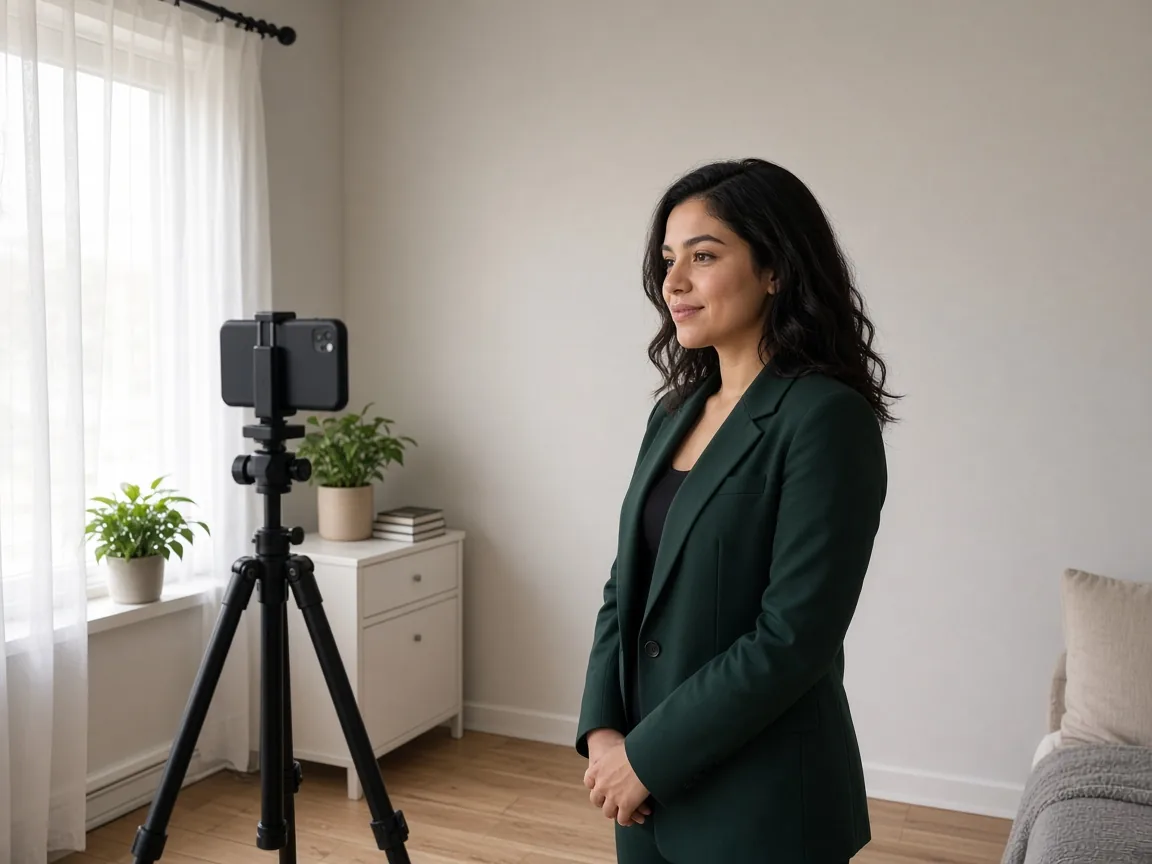
What you need: your phone, something to hold it at eye level (a small tripod, a stack of books or a friend), a window, and a plain wall.
Step by step:
- Pick your time. Daytime, ideally with soft or overcast light. Avoid direct midday sun hitting your face; a sheer curtain helps soften it.
- Position yourself. Face the window so the light falls on the front of your face. Stand about a meter or two in front of a plain wall — a little distance helps the background stay soft.
- Use the rear camera if you can. On most phones the rear camera is noticeably better than the front one. Use the self-timer or a cheap Bluetooth remote, or ask a friend to take the photo.
- Set the camera at eye level, about an arm's length or more away. Very close wide-angle shots exaggerate your nose and forehead. If your phone has a 2x or "portrait" lens, try it — it is usually more flattering for faces.
- Tap to focus on your eyes, and lower the exposure slightly if your face looks washed out.
- Clean the lens. Phone lenses pick up fingerprints that make photos look hazy.
- Shoot many frames. Use burst mode or the timer repeatedly, and vary your expression and head angle a little.
- Choose and lightly edit. Pick the sharpest frame with the most natural expression. Small tweaks to brightness and crop are fine; avoid beauty filters that change your features.
For more on posing and taking many good selfies, see how to take selfies for AI headshots — the same advice applies to a DIY LinkedIn photo.
Photographer vs AI headshots: an honest comparison
If DIY is not getting you where you want, you have two main options: book a photographer, or use an AI headshot service that creates portraits from your selfies. Both can work. Here is how they compare.
| Professional photographer | AI headshot service (like Fylvy) | |
|---|---|---|
| Typical cost | Varies widely by location and package; commonly from around a hundred to several hundred dollars, sometimes more for styling or extra looks | Fylvy is $39 one-time for 40 headshots in 10 looks; other services price differently |
| Time | Booking, travel and the session, then often days for edited photos | Upload selfies, results usually within about an hour at Fylvy |
| Variety | Depends on the package; outfit and background changes take extra time | Several outfits and backgrounds in one go |
| Likeness and accuracy | Real photo of you — the most reliable likeness | Usually close, but AI can get small details wrong; you choose only the ones that genuinely look like you |
| Control and direction | A good photographer coaches your pose and expression in real time | Depends heavily on the quality and variety of your selfies |
| Image quality | Can produce large, high-resolution files suitable for print | Fylvy's images are sized for web profiles, more than enough for LinkedIn's 400 × 400 minimum, but not intended for large print |
| Best for | Executives, public-facing roles, print use, anyone who wants a real session | Refreshing a profile quickly and affordably, trying different looks, people who dislike being photographed |
Honest pros and cons:
- Photographer pros: a real photo, expert lighting and coaching, print-ready files, no question about authenticity.
- Photographer cons: cost, scheduling, travel, and you get the looks you had time to shoot.
- AI pros: fast, inexpensive, many looks, no appointment, and you can do it from home.
- AI cons: not every result will look exactly like you, results depend on your selfies, and some people simply prefer a real photograph. Choose only images that clearly reflect your likeness — that is both good practice and LinkedIn's own requirement.
We go deeper in AI headshots vs a photographer and are AI headshots worth it?.
How to update your LinkedIn profile photo
These steps follow LinkedIn Help's current instructions. LinkedIn occasionally changes its layout, so labels may vary slightly.
On desktop:
- Click the Me icon at the top of your LinkedIn homepage, then View profile.
- Click your current profile photo (or the camera icon if you do not have one yet).
- Choose Upload photo (or Add photo) and select your image file.
- Use the Crop, Filter and Adjust options to position your face in the circle. Keep filters minimal.
- Choose who can see your photo under Visibility — for job searching, "All LinkedIn members" or "Public" makes the most sense.
- Click Save photo.
On the mobile app:
- Tap your profile photo to open your profile, then tap your profile photo again.
- Tap Edit, then Change photo (or Add photo if you don't have one yet).
- Pick an image from your library or take a new one.
- Drag to reposition your face in the circle.
- Set Visibility, then tap Save.
Before you replace your photo: LinkedIn Help notes that it cannot restore a previous profile photo once you have replaced or deleted it, so keep a copy of your old photo if you might want it back.
Frequently asked questions
What size should a LinkedIn profile picture be?
LinkedIn Help states that profile photos should be between 400 × 400 and 7,680 × 4,320 pixels, under 8 MB, and in JPG or PNG format. A square image a bit larger than the minimum — for example 800 × 800 or more — gives you room to crop.
Should I smile in my LinkedIn photo?
In most fields, yes. A relaxed, natural smile usually reads as approachable and confident. If a big smile does not feel like you, a soft closed-mouth smile with relaxed eyes works well too.
Can I use a selfie as my LinkedIn photo?
Yes, if it looks like a deliberate headshot rather than a casual snapshot: eye-level camera, good window light, plain background, appropriate clothing and no arm in the frame. Using the rear camera with a timer usually gives better results than the front camera.
Are AI headshots allowed on LinkedIn?
LinkedIn's guidance is that your profile photo must reflect your likeness, and illustrations are acceptable if they do. In practice, that means any photo — AI-generated or not — should clearly look like you. Pick results that are accurate, and avoid ones that change your features.
How often should I update my LinkedIn photo?
Update it whenever your appearance changes noticeably — new hairstyle, glasses, facial hair — or when your photo no longer matches your current role. Many people refresh it every couple of years.
What background is best for a LinkedIn headshot?
A plain, light neutral wall or a softly blurred office or outdoor setting. Avoid clutter, bright lights and anything with text or logos. See our guide to the best background for professional headshots.
Does my LinkedIn photo really matter?
It is not the only thing that matters — your headline, experience and activity count too — but it is often the first impression and appears everywhere you interact on LinkedIn. A clear, recent, professional photo removes an easy reason for someone to skip your profile.
How long does Fylvy take, and what if I don't like the results?
Results are usually ready within about an hour. One redo is included, and if we can't deliver usable headshots, you get a refund. Your selfies are deleted after use.
The bottom line
A strong LinkedIn headshot is mostly about a few deliberate choices: crop tight for the circle, face soft light, keep the background simple, dress the way you would for an important meeting, and look into the lens with a relaxed expression. You can absolutely do this at home with a phone and a window.
If you would rather skip the trial and error, a photographer is the gold standard for a real session, and an AI headshot service is a fast, affordable way to get several polished options to choose from.
Ready for a better LinkedIn photo? Upload 8–20 selfies and get 40 headshots in 10 looks for $39 one-time — usually within about an hour, with one redo included.
Sources: LinkedIn Help — "Add or change your profile photo" and "Profile photo and background photo requirements". Photographer pricing is described generally because it varies widely by location and package.